Back to dashboard
Playmates Playmates
How to take an exam ๐Ÿ“š
Step-by-step guide to taking language exams on Playmates. Click any screenshot to enlarge it.
Exam flow โ€” 9 steps
1
Step 1
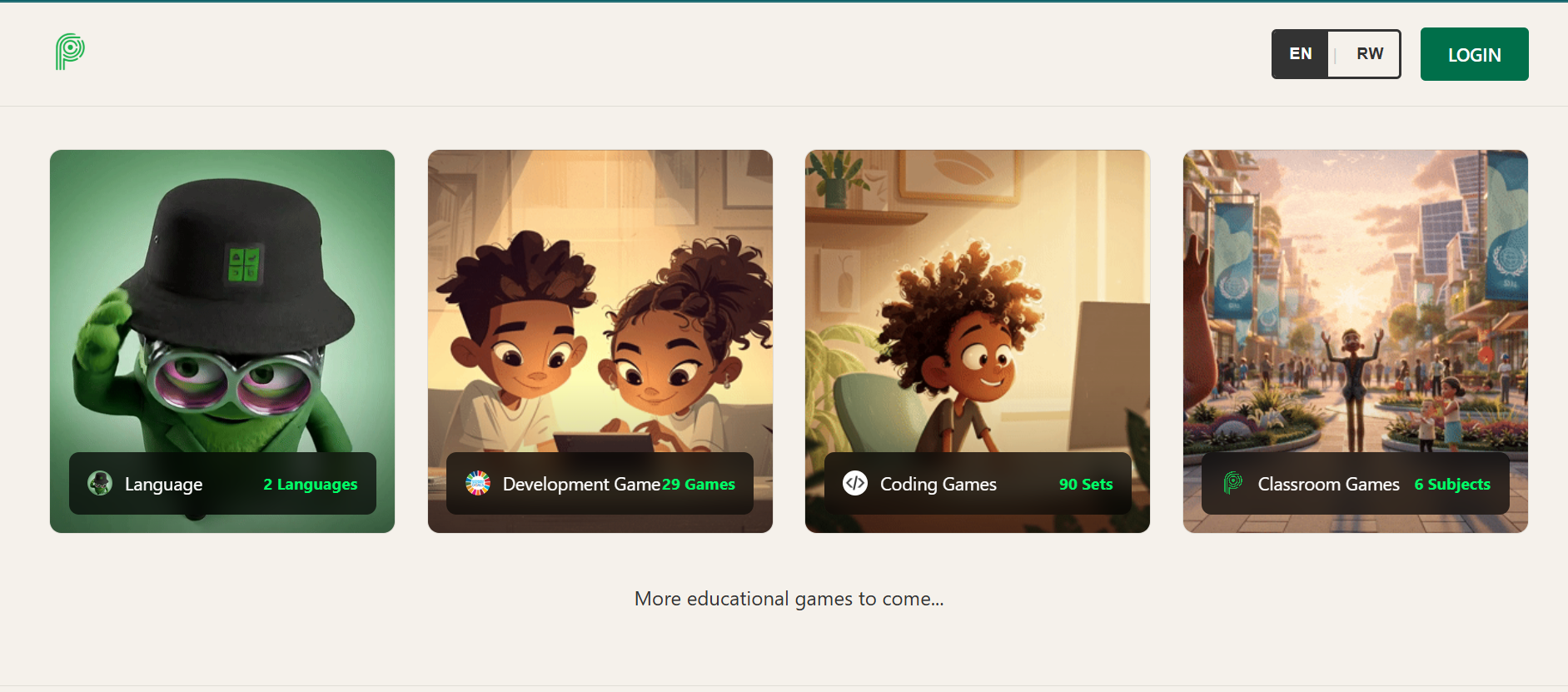
Visit the Playmates homepage. You'll see different game categories โ€” click Languages to access language exams.
Homepage
Homepage: Click "Languages" from the category grid to access all language exams and games.

2
Step 2
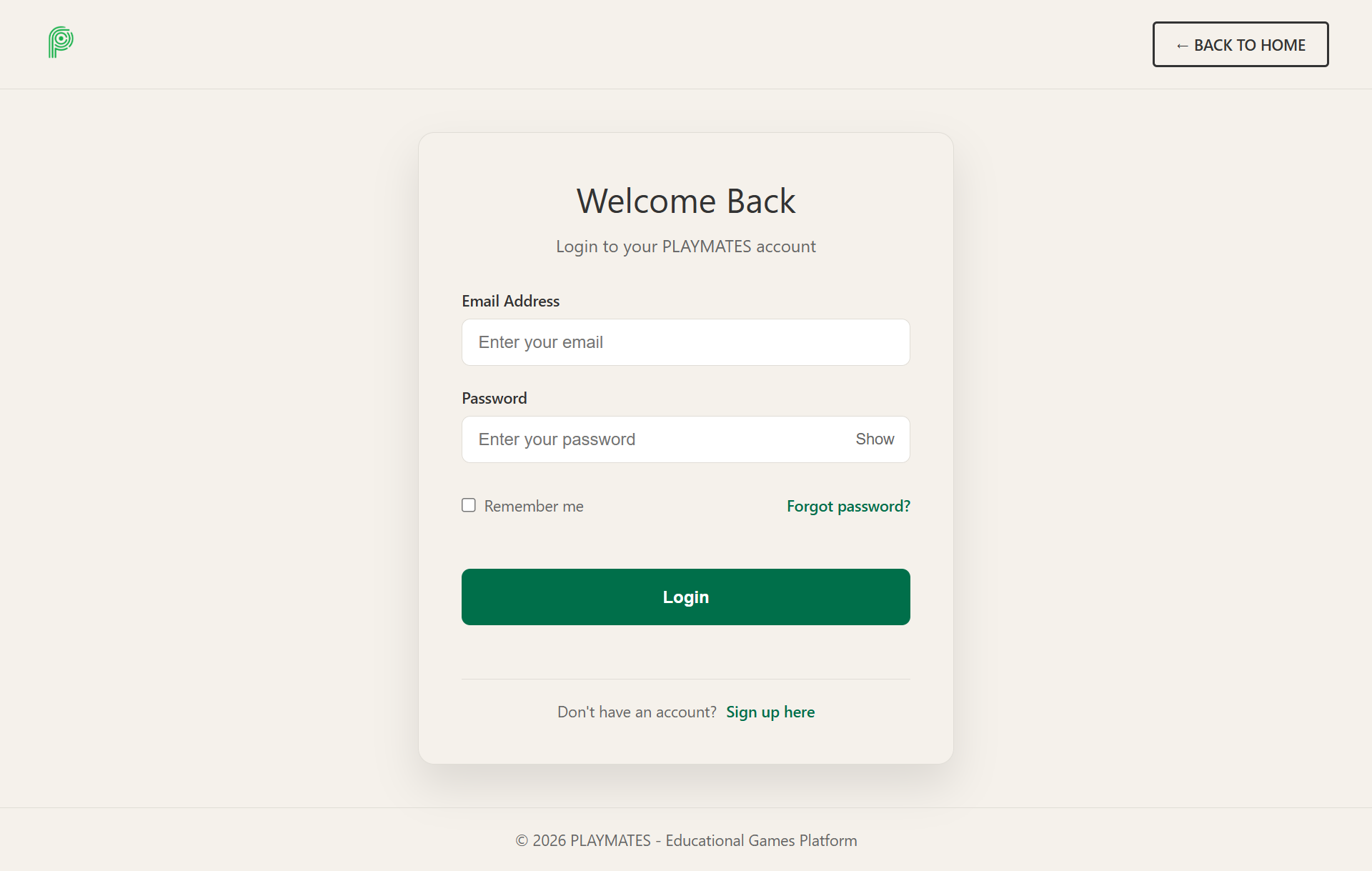
Enter your email and password to access your account. New to Playmates? You can sign up from this page.
Login page
Login page: Enter your email and password, then click "Login" to continue to your dashboard.
Keep your credentials safe. Never share your password with anyone.

3
Step 3
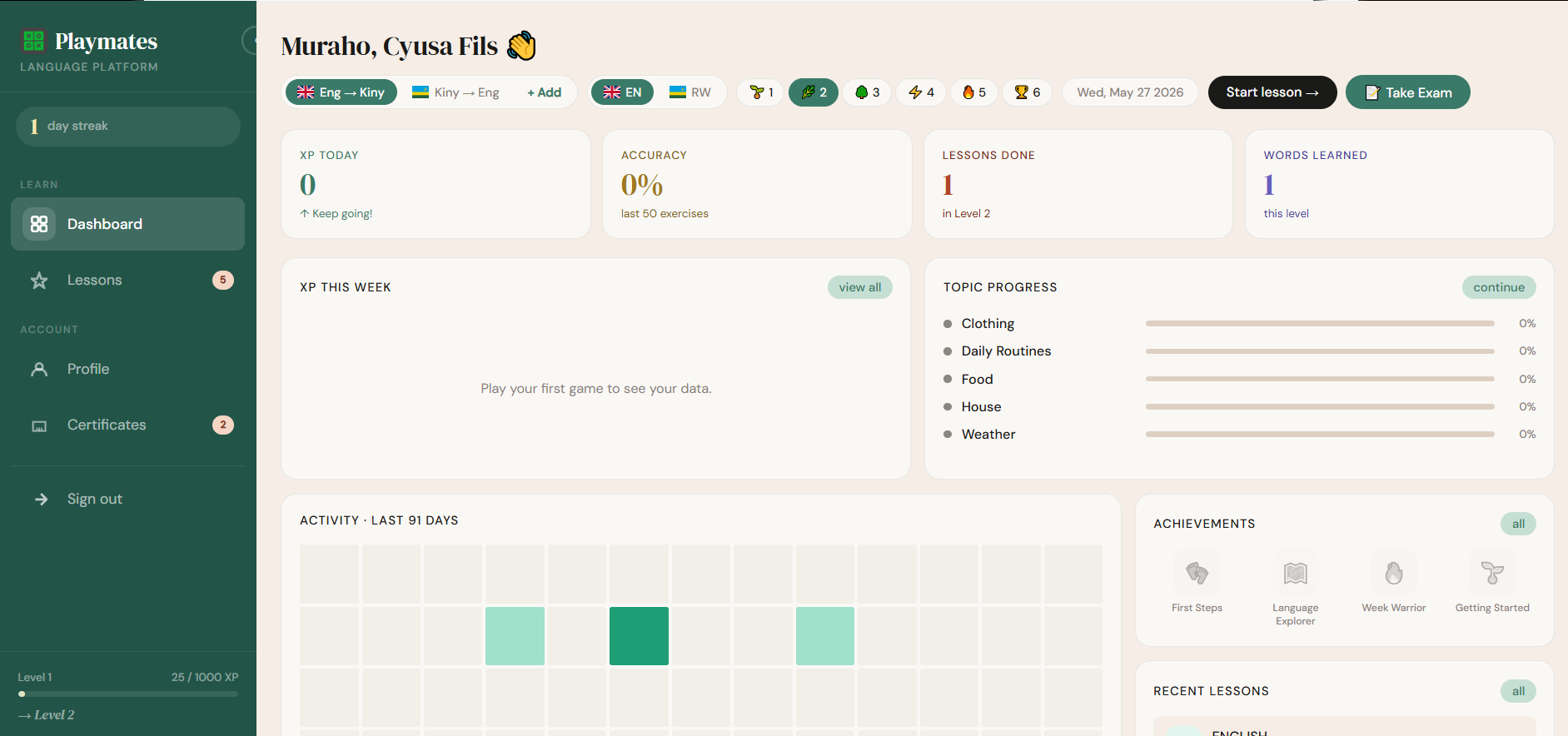
After logging in, you'll land on your dashboard. Navigate to the Languages section and click "Take Exam" to begin the exam registration process.
Language dashboard
Language dashboard: Click the "Take Exam" button to start the exam registration flow. This takes you to Step 4 โ€” choosing your exam type.
Review your accuracy and topic progress before starting โ€” this helps you identify areas to brush up on first.

4
Step 4
Select the exam that matches your goals. Both options contain 40 questions and take 60 minutes to complete.
Academic English ๐ŸŽ“
40 questions60 min

For university and academic study. Tests comprehension, writing, and formal communication.

Business English ๐Ÿ’ผ
40 questions60 min

For professional and workplace communication. Focuses on business terminology and professional writing.
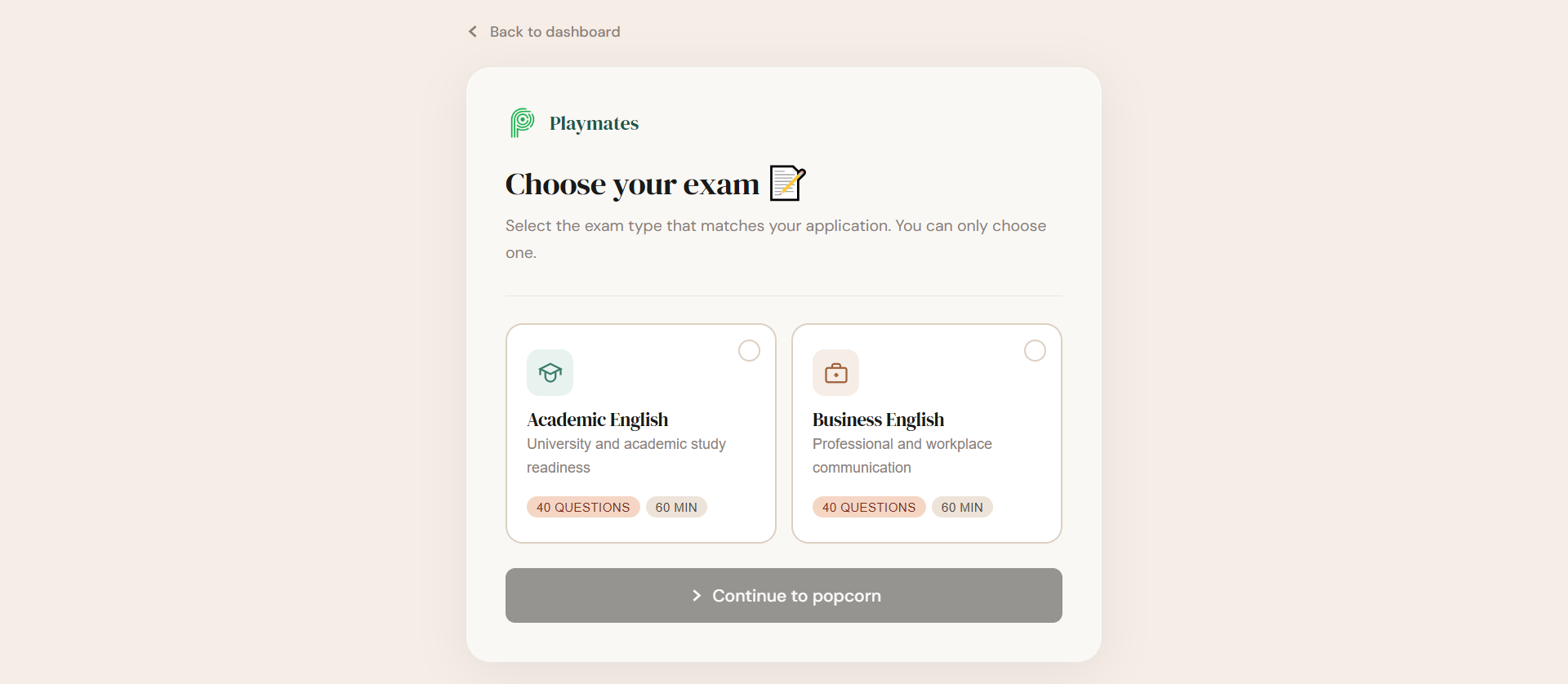
Choose exam type
Exam selection: Pick Academic or Business English. You can only choose one per session. After selecting, you'll be taken to enter your popcorn code (if applicable).

5
Step 5 ยท Optional
If your institution provided a popcorn code, enter it here. This links your exam to your institution's registration. Skip ahead if you don't have one.
What you'll need

Popcorn code โ€” provided by your school

Full name โ€” exactly as it should appear on your certificate

School name โ€” your institution's name

Good to know

The exam type is automatically linked to your code. Double-check your spelling โ€” your full name will appear on your certificate exactly as entered.
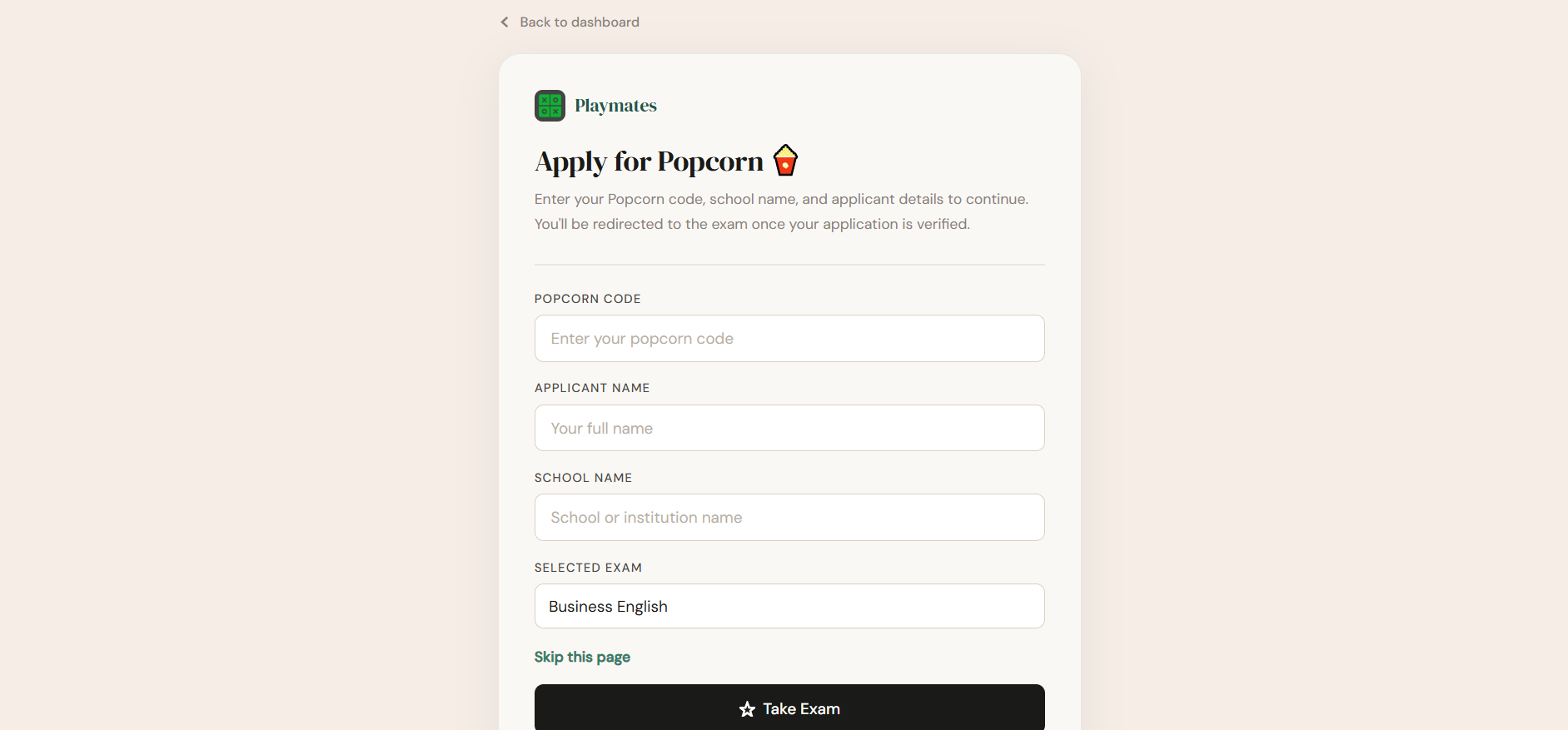
Popcorn code form
Popcorn application: Enter your code, full name, and school name. The exam type is linked automatically from your selection in Step 4.

6
Step 6
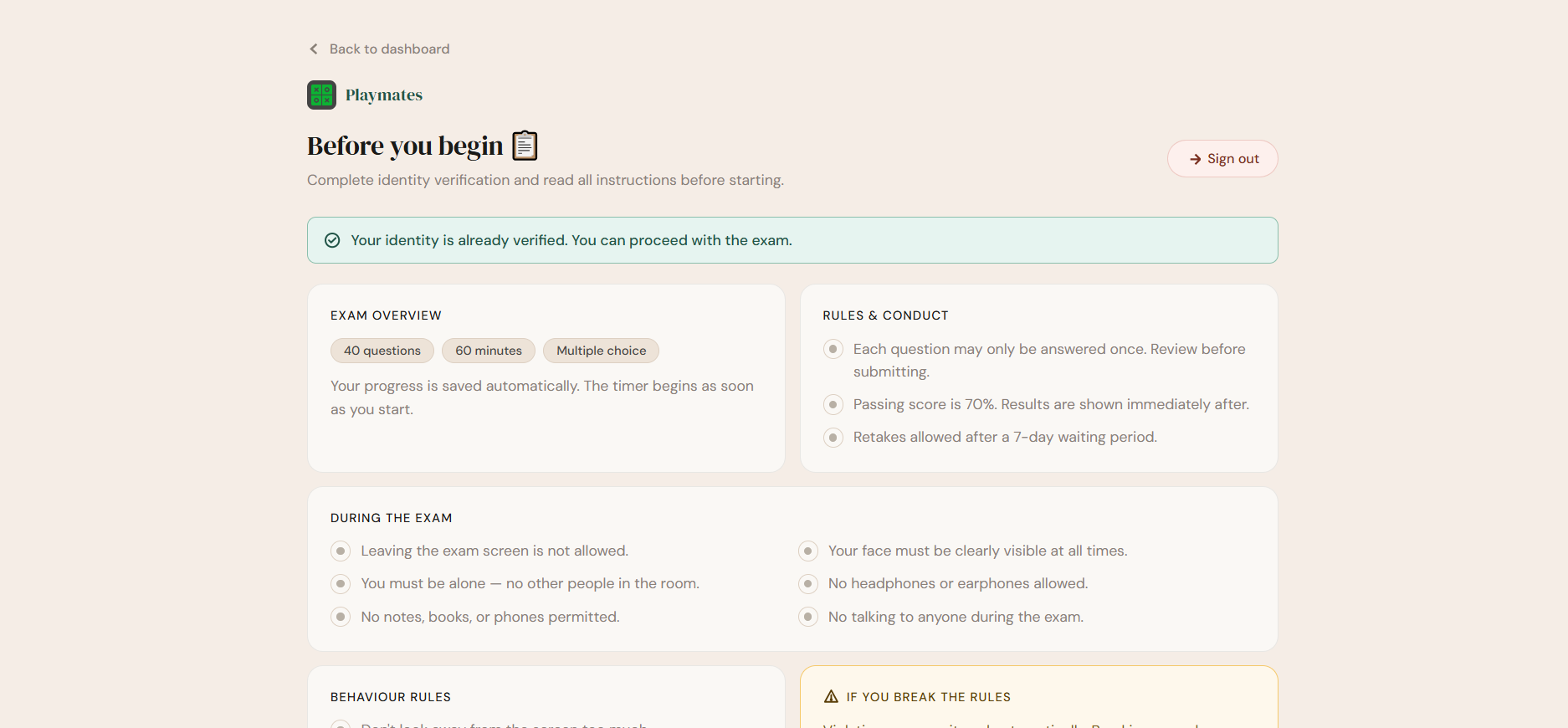
Before starting the exam, you'll see a summary of your details and your identity verification status. The page looks the same for everyone โ€” but the status shown depends on whether your documents have been verified.
Identity verified
You're ready to proceed
Your documents have been verified. The "Begin Exam" button is enabled โ€” you can start immediately.
Not verified
Verification required
You'll need to complete identity verification before the "Begin Exam" button becomes active. Follow the on-screen instructions to submit your ID or passport.
Review and verify screen
Review page: Shows exam details, rules, and your identity verification status. The "Begin Exam" button is only active when your identity is verified.
Exam rules

Each question may only be answered once.

Passing score is 70%. Results shown immediately.

Retakes allowed after a 7-day waiting period.

Conduct during exam

You must be alone โ€” no other people in the room.

No notes, books, phones, or headphones.

Your face must be clearly visible at all times.

If you break the rules

Your exam may be cancelled immediately.

Your result will not be certified.

Multiple violations may lead to account suspension.

7
Step 7
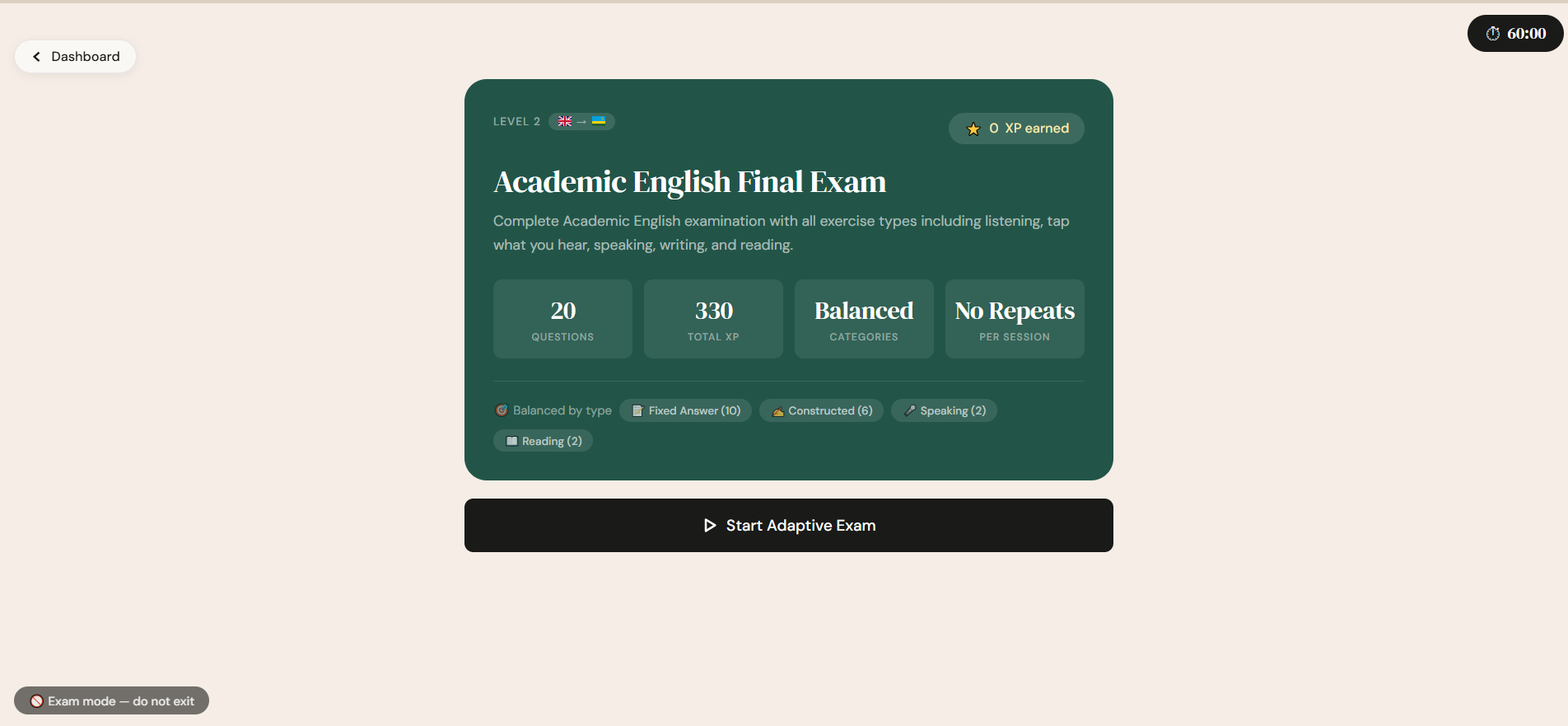
Once you click "Begin Exam," the timer starts immediately. Answer each question carefully โ€” each can only be answered once.
Exam in progress
Exam interface: Progress bar at the top, countdown timer, question card with answer options, and Previous/Next navigation. Timer turns red when 2 minutes remain.
Question types

Fixed answer โ€” 10 questions

Constructed response โ€” 6 questions

Speaking โ€” 2 questions (repeat the prompt clearly)

Reading โ€” 2 questions

Time warnings

Yellow โ€” 10 minutes remaining

Red pulse โ€” 2 minutes remaining

Auto-submit โ€” when timer hits 0:00

Tab switch violations

Switching to another tab triggers a warning. After 7 violations, your exam is automatically dismissed. Keep the exam window active at all times.
8
Step 8
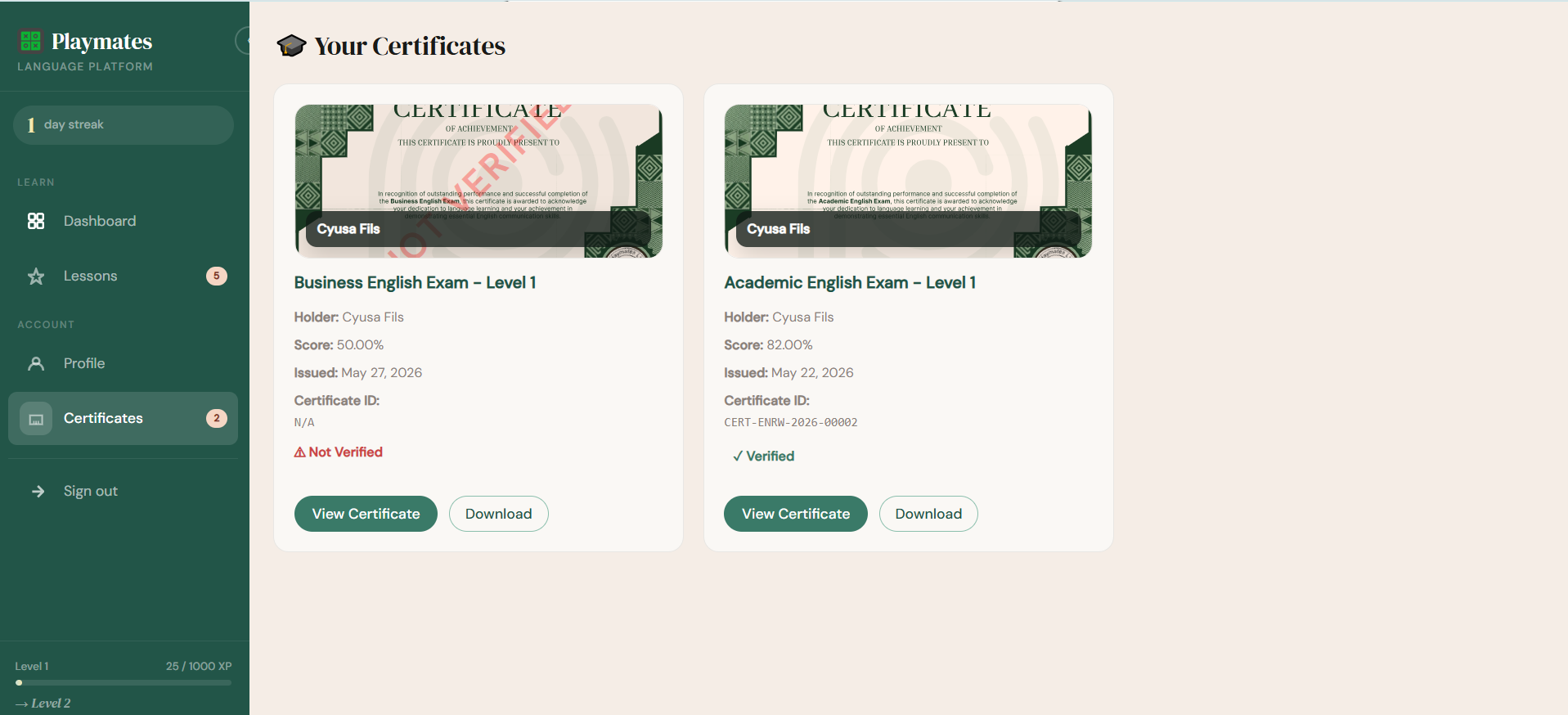
Score 70% or higher and a certificate is generated automatically. You can view it right away โ€” but what you can do with it depends on whether it has been verified.
Certificates page
Certificates section: Each card shows your name, exam type, score, issue date, and current verification status.
Verified & approved
Full access
You can view full certificate details, download a PDF, and share your certificate link or QR code with employers and institutions.
Pending verification
View only โ€” no download yet
You can view your certificate details, but the download and share options are not available until your institution approves it. Check back after 24โ€“48 hours.
If your certificate shows as Not Verified, please wait for your institution to review and approve it. No action is required on your end.

9
Step 9
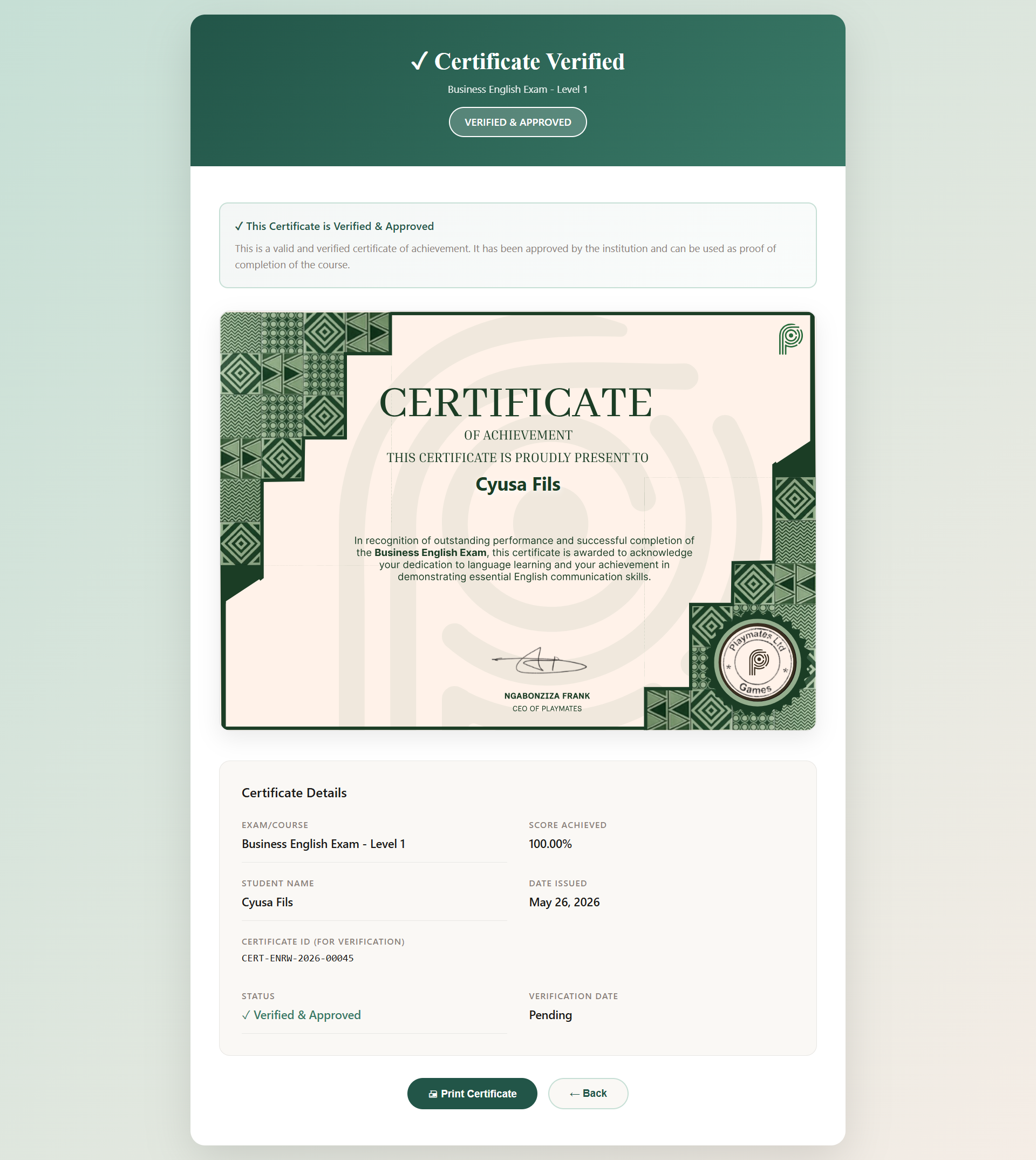
Once your certificate is verified and approved, you can download it as a PDF or share it via link or QR code.
Verified certificate
Verified certificate: Shows your name, exam type, score, date issued, and unique certificate ID (e.g. CERT-ENRW-2026-00045) with a QR code for verification.
How to download
1

Go to Certificates from your dashboard.

2

Click the verified certificate you want to download.

3

Click Download or Print to save as PDF.

4

Share the link or QR code โ€” recipients can verify it instantly.

Each verified certificate has a unique ID (e.g. CERT-ENRW-2026-00045). Anyone can scan the QR code on the certificate to confirm its authenticity.

Pro tips
A few things to set yourself up for success on exam day.
Before your exam

Ensure a stable internet connection.

Test your microphone โ€” speaking questions require it.

Close unnecessary tabs and applications.

Find a quiet, private space with good lighting.

During your exam

Read each question carefully before answering.

Don't spend too long on one question.

Stay calm โ€” this tests your current knowledge level.

Keep the exam window in focus at all times.

After your exam

Your score is displayed immediately after submission.

Pass (โ‰ฅ70%) and your certificate is generated automatically.

Verification usually takes 24โ€“48 hours. Download and share become available once approved.

Retake available after 7 days if you don't pass.


?
FAQ
Quick answers to common questions about the exam process.
What's the passing score?
You need to score 70% or higher to pass and receive a certificate.
Can I pause the exam?
No. Once you start the exam you must complete it in one session. The timer runs continuously, so plan to be uninterrupted for the full 60 minutes.
Can I retake the exam if I fail?
Yes. You can retake the exam after a 7-day waiting period if you score below 70%.
What documents do I need?
You need a valid government-issued ID or passport for identity verification. Either is acceptable.
How do speaking questions work?
A prompt will appear on screen for you to repeat or respond to. Click the microphone button and speak clearly. Make sure your microphone is working before starting the exam.
Can I use external materials?
No. Using notes, books, phones, or any external resources during the exam may result in score invalidation and account suspension.
Why can't I download my certificate yet?
Download and share options are only available after your institution verifies and approves your certificate. This usually takes 24โ€“48 hours. You can still view your certificate details while waiting.
Is the certificate valid forever?
Yes. Playmates certificates do not expire. Anyone can verify your certificate at any time by scanning the QR code on the document.
Can I share my certificate?
Yes, once verified. You can share the certificate link directly or let recipients scan the QR code on the PDF to confirm its authenticity.